How to Check an Emburse Card's Balance and Top It Up
Admins can view the balance on each Emburse Card and add funds from the Team Cards screen. This article explains how to check a card balance and top it up.
Click on the Admin menu in the top left corner of your screen, then select Team Cards.
Click on the tab for your Emburse Cards program. You will see the cards listed by cardholder.
This capability is currently only available to organizations based in the United States.
- Click the
More Actions button to edit or view the card details, or to suspend or cancel the card.
- Click the blue, hyperlinked number in the Unsubmitted column to open a filtered list of the unexpensed transactions associated with that card on the Transactions screen.
Check a Card Balance
- On the Team Cards screen, click the desired card in the list to open its Card Details screen.
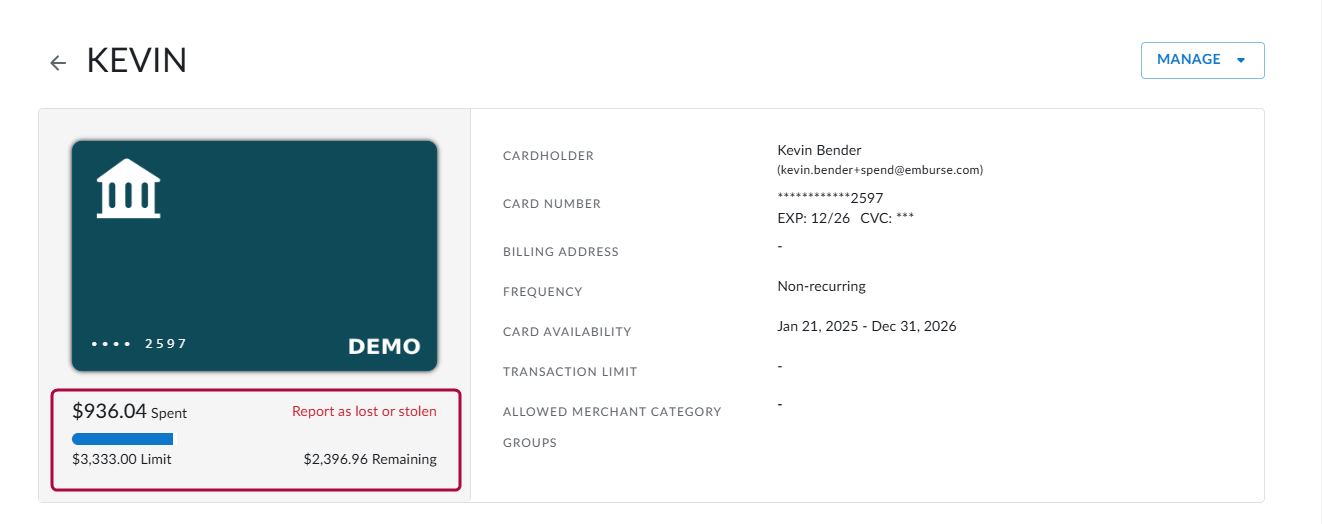
- The card balance is displayed directly under the card image, on the left. You will also see the card's limit and the remaining amount available.
 Top-Up a Card Balance
- In the upper right corner of the Card Details screen, click Manage and select Edit.
- On the Update pop-up, adjust the amount in the Budget field, then click Update.
Please ensure you have a sufficient balance to cover the new limit on the card. See Manage Your Emburse Cards Funding Source and Balance in Emburse Spend for more details.